
Import a Configuration
After installing a client, import a configuration to load nodes and routing rules. The most common method is a subscription URL generated by your service provider.
Import from a subscription URL
The steps below use Clash Verge Rev as the example.
Copy the subscription URL
Sign in to your service provider and find Subscription URL, One-click Subscription, or a similar option. Copy the URL intended for Clash or Mihomo.
The URL normally begins with https://. Do not copy a dashboard URL, referral link, or QR-code image URL.
Open the profiles page
Open the client's Profiles, Subscriptions, or configuration page and paste the URL into the input field.
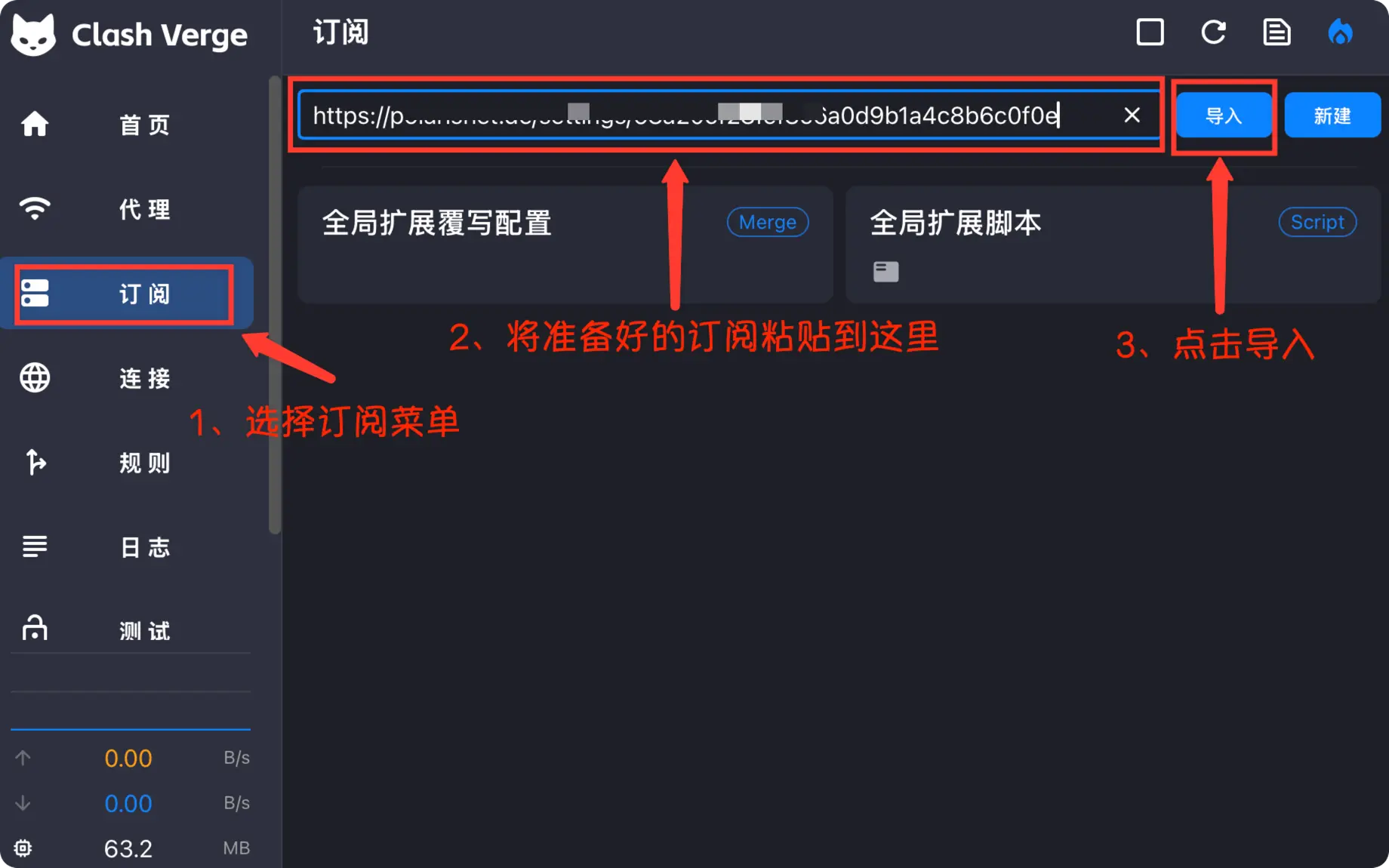
Download the configuration
Click Import, Download, or the add button. After a successful request, the client creates a new profile card.
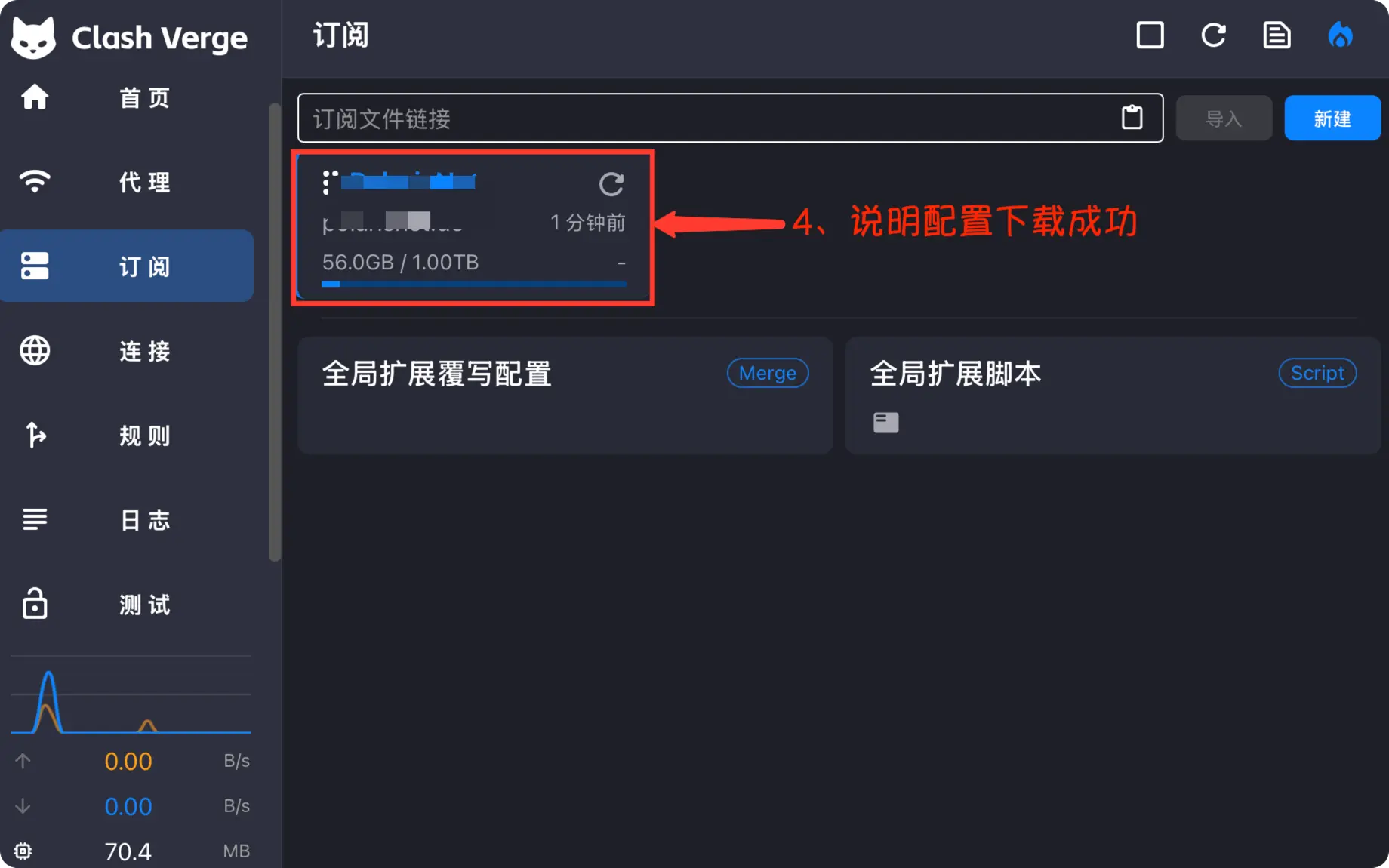
Activate the profile
Make sure the new profile is selected. Some clients switch automatically; others require you to click the profile card or a Use button.
Import a local file
If you received a .yaml or .yml file, choose Import File on the profiles page or drag the file into the client.
After importing, verify that:
- The profile name appears in the list.
- The profile is active.
- The Proxies page contains policy groups and nodes.
- The client log does not report a format error.
Update a subscription
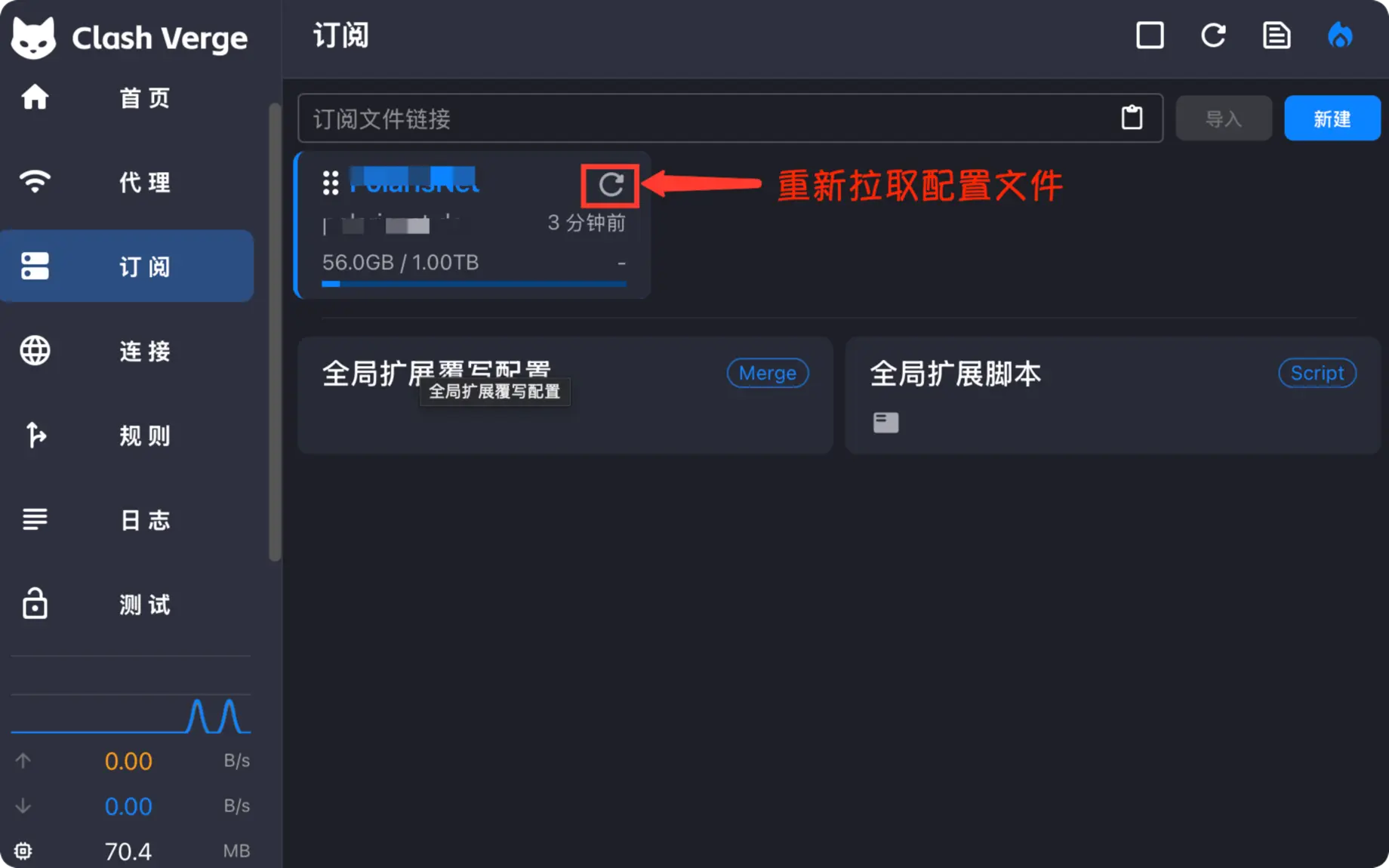
Nodes, rules, and traffic information may change. Use the client's update button instead of repeatedly deleting and re-adding the subscription.
If the import fails
| Symptom | Check first |
|---|---|
| Invalid URL | Whether the complete https:// URL was copied |
| Download timeout | Whether the current network can reach the subscription server |
| HTTP 401 or 403 | Whether the subscription expired, was revoked, or was reset |
| Parse error | Whether the URL returns a Clash/Mihomo-compatible format |
| Imported successfully but no nodes appear | Whether the newly added profile is active |
If the problem remains, continue with the troubleshooting guide.