
FlClash Download & Setup Guide
FlClash is an open-source client built with Flutter and powered by the Mihomo (Clash Meta) core. It uses the same interface on desktop and Android, which makes it a good fit if you use Clash on several devices.
| Platforms | Core | License | Price |
|---|---|---|---|
| Windows · macOS · Linux · Android | Mihomo | GPL-3.0 | Free |
Download
FlClash is published only on its official GitHub releases page. Open the page and pick the right file from the Assets list of the latest release:
| Device | File name contains | Notes |
|---|---|---|
| Windows PC | windows-amd64-setup.exe | Installer; windows-amd64.zip is the portable version |
| Mac (Apple silicon) | macos-arm64.dmg | M1 and later |
| Mac (Intel) | macos-amd64.dmg | Macs with Intel processors |
| Linux | linux-amd64.deb / .rpm / .AppImage | Pick by distribution; AppImage works everywhere |
| Android phone | android-arm64-v8a.apk | For almost all Android phones |
| Older Android phone | android-armeabi-v7a.apk | Older 32-bit devices |
android-x86_64.apk build is only for emulators and a few x86 devices; it won't install on a normal phone. Only download from the official releases page, never from unknown file-sharing links.Install
setup.exe and follow the installer. If you see "Windows protected your PC", click More info → Run anyway..dmg and drag FlClash into Applications. If macOS blocks it on first launch, go to System Settings → Privacy & Security and click Open Anyway.# Debian / Ubuntu
sudo apt install ./FlClash-*-linux-amd64.deb
# Fedora / openSUSE
sudo dnf install ./FlClash-*-linux-amd64.rpm
.apk to install it. If Android blocks apps from unknown sources, allow your browser or file manager to install apps when prompted.Setup
Get your subscription link
FlClash is only a client and does not include any servers. Sign in to your provider's dashboard and copy your subscription link (usually under "Subscribe" or "Copy subscription URL").
Add a profile
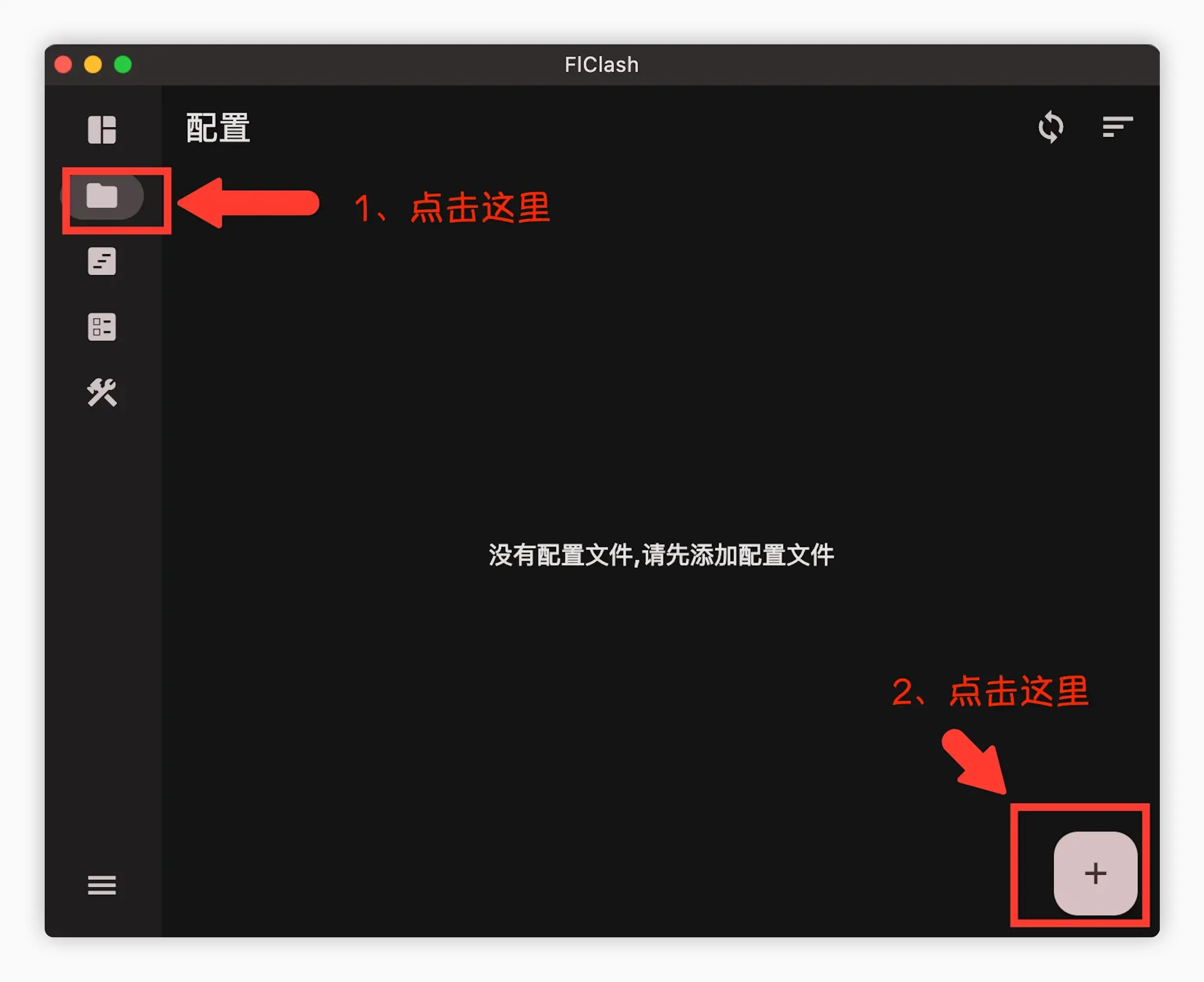
Click the Profiles icon in the sidebar, then click + in the bottom-right corner.
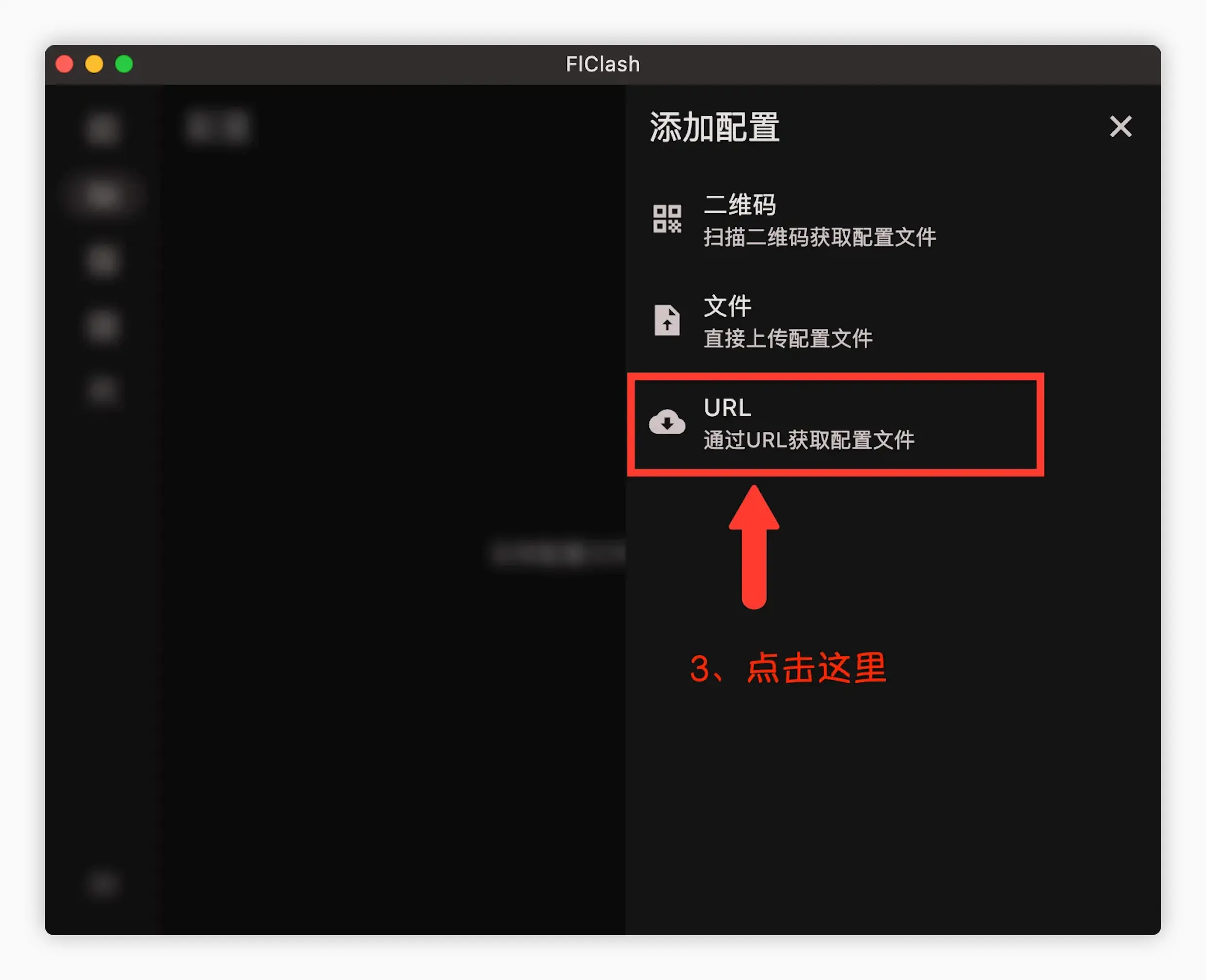
Choose URL from the menu.
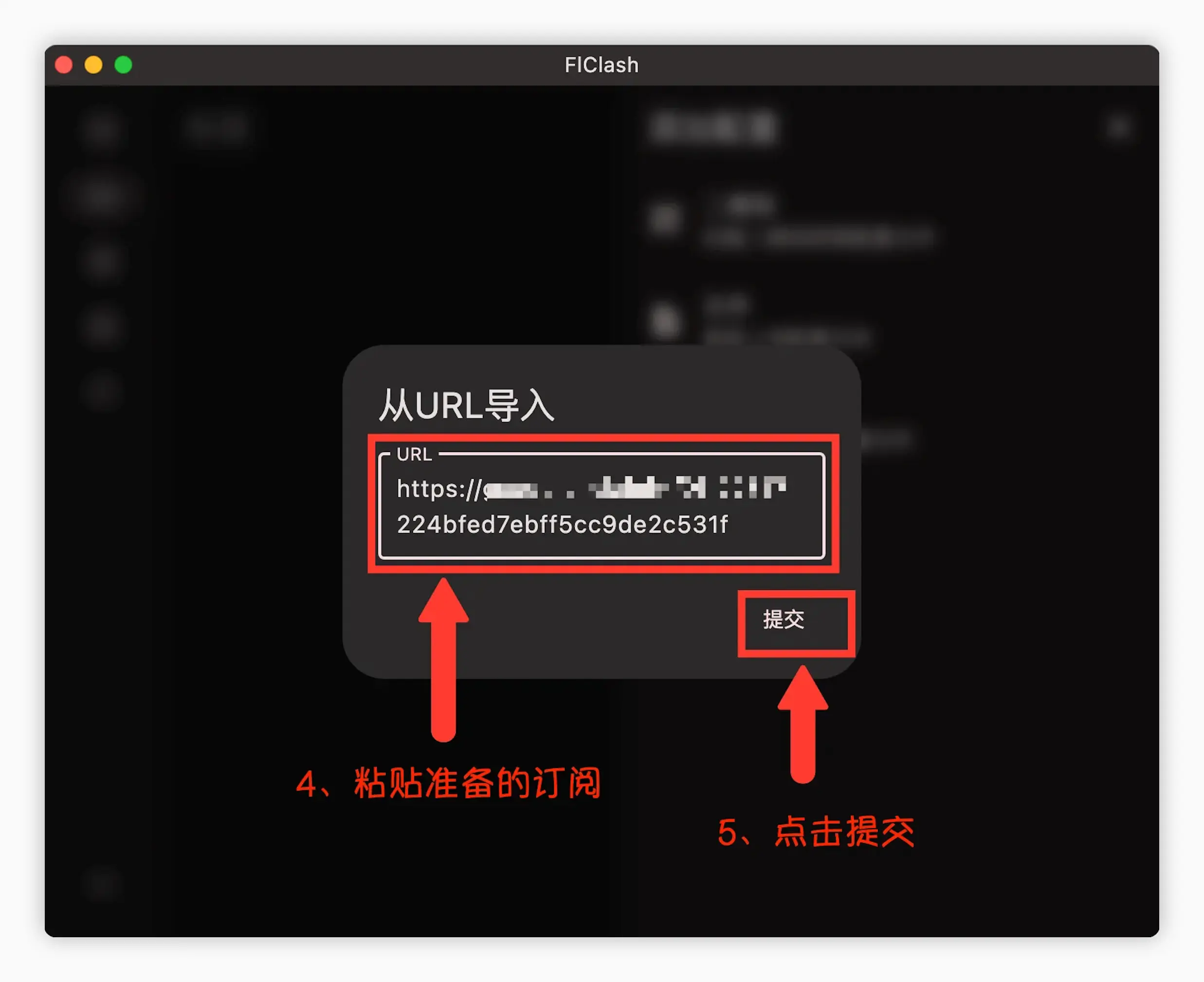
Paste the subscription link and click Submit.
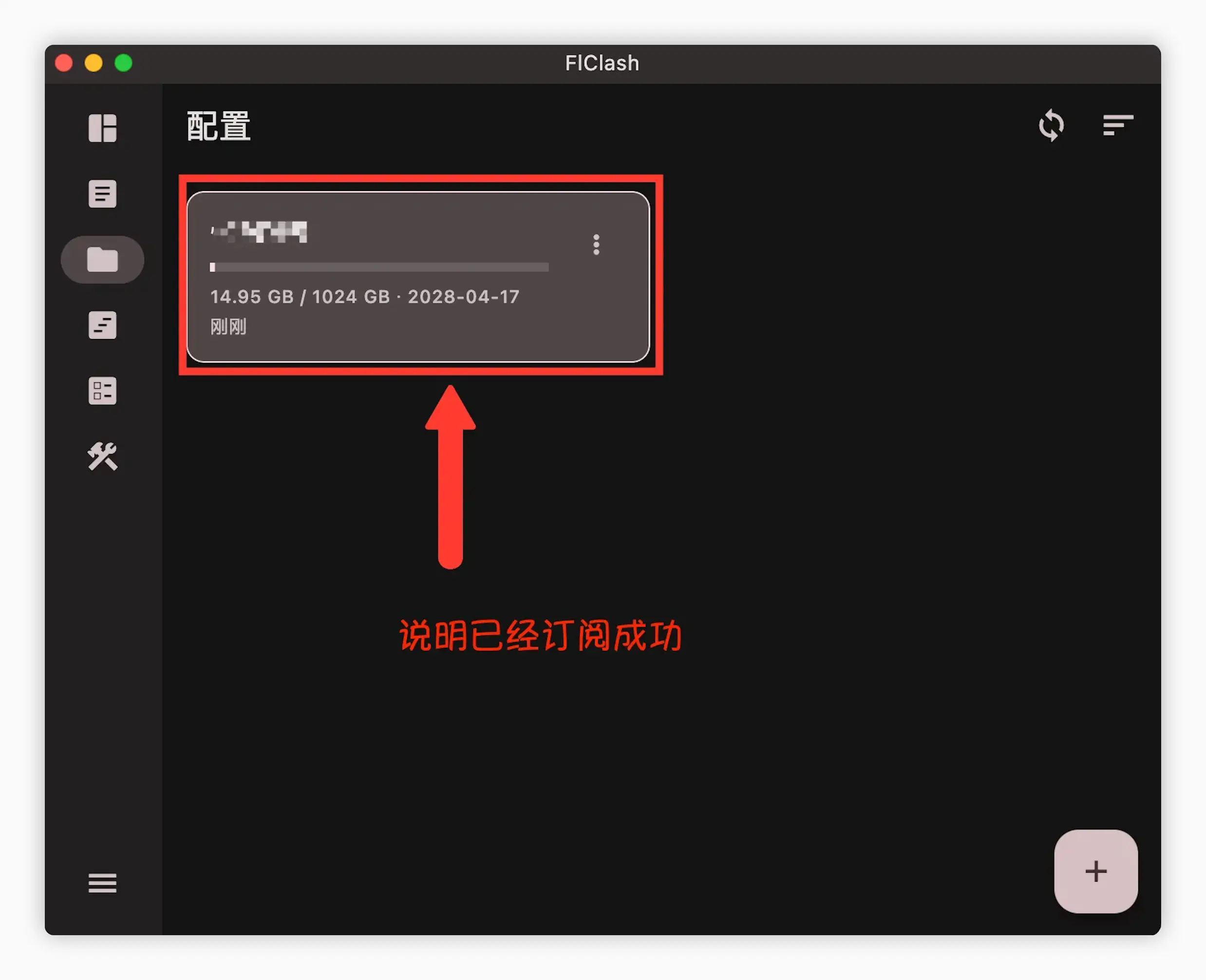
When a profile card appears with data usage, the import worked.
Start the proxy
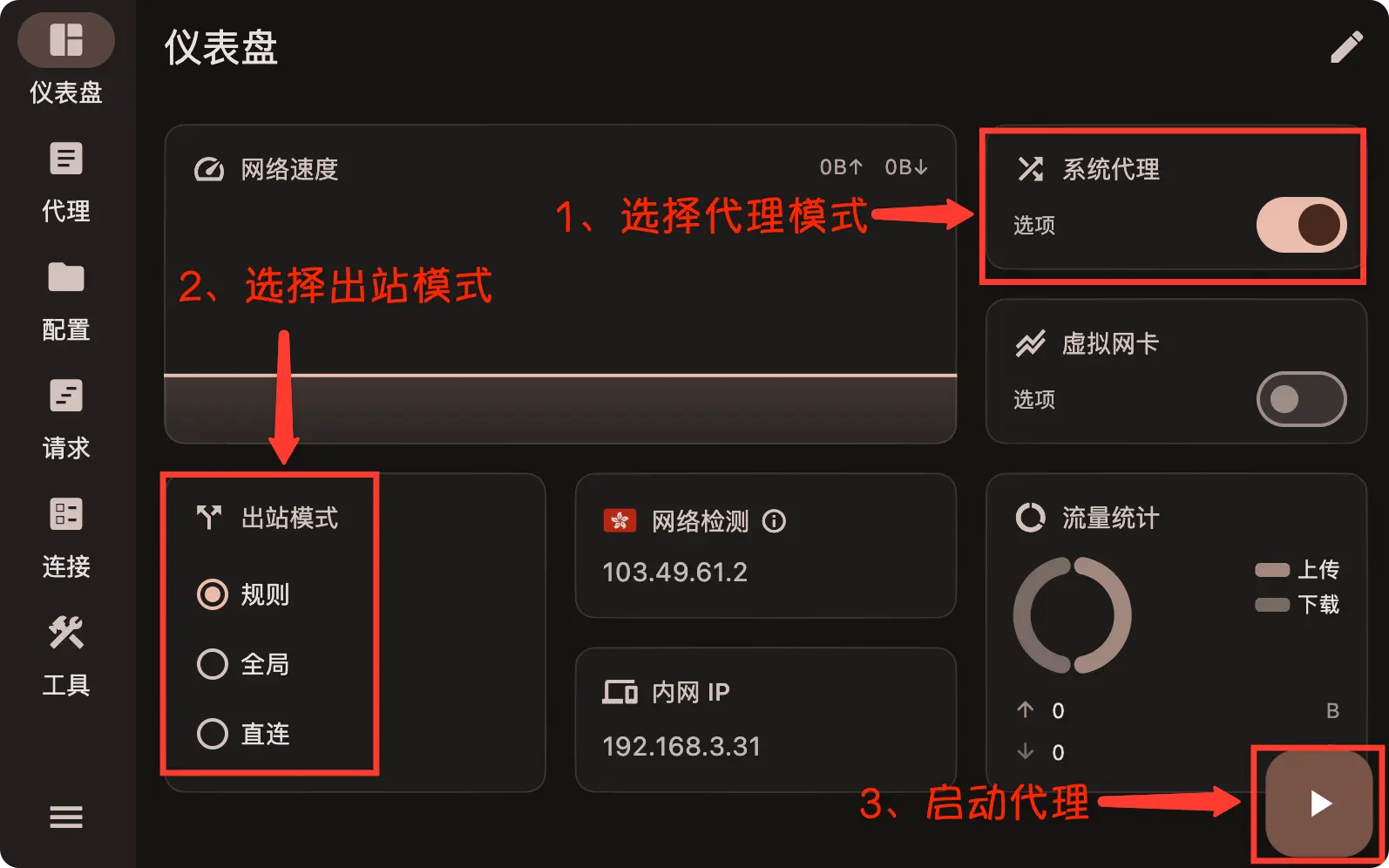
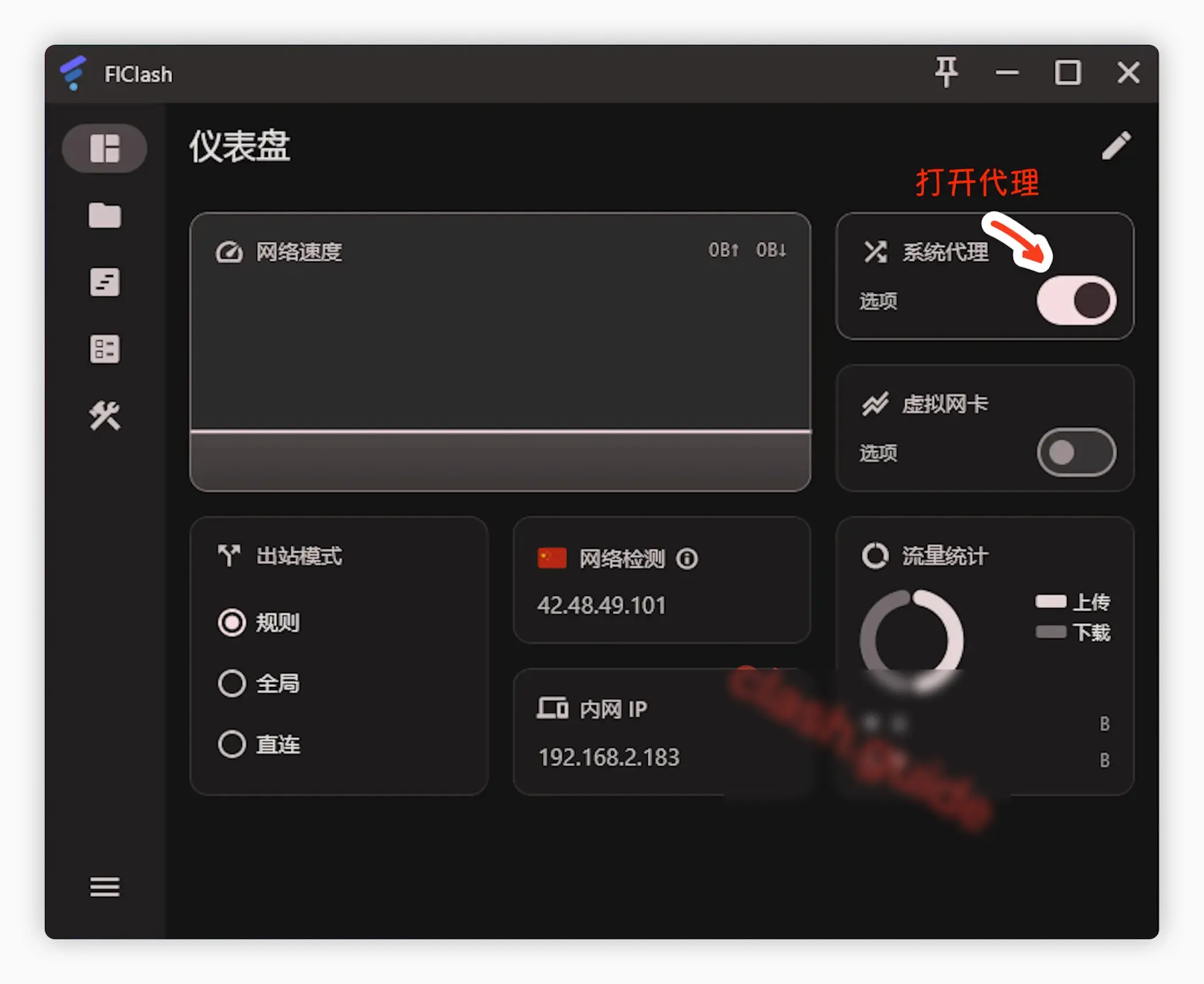
Go back to the Dashboard, set the outbound mode to Rule, make sure System proxy is on, and click the ▶ button in the bottom-right corner. On Android, allow the VPN permission request the first time.
Choose a server
Open Proxies and pick a server with low latency, or keep automatic selection. If your usual websites load in the browser, you're done.
Advanced settings
Virtual network adapter (TUN mode)
The Virtual NIC (TUN) switch on the dashboard captures traffic from apps that ignore the system proxy, such as games and command-line tools. On a computer, it may need administrator rights. Use either the system proxy or TUN, not both. See Advanced Settings.
Update subscriptions
Click the refresh button in the top-right corner of Profiles to update all subscriptions.
FAQ
x86_64 APK on a phone. Download android-arm64-v8a.apk instead.Open Terminal, run the command below, and open FlClash again:
sudo xattr -r -c /Applications/FlClash.app