
Shadowrocket Setup Guide
Shadowrocket is one of the most widely used proxy clients for iPhone and iPad. It supports Clash subscriptions and most mainstream protocols, has powerful rule-based routing, and is fairly easy to use.
| Platforms | Source | Price | Where to get it |
|---|---|---|---|
| iPhone · iPad | Closed source | One-time purchase | App Store outside mainland China |
How to get it
Shadowrocket isn't available in the mainland China App Store. You'll need an Apple ID from another region, such as the US or Hong Kong:
- In the App Store, tap your profile picture, sign out, and sign in with your overseas Apple ID.
- Search for Shadowrocket, then buy and install it. There are many look-alike apps with similar names, so check the name and icon carefully.
- After installing, you can switch back to your usual Apple ID. Installed apps keep working.
Setup
Get a subscription
Shadowrocket is only a client and does not include any servers. Get a subscription from your provider first.
Import the subscription
Option 1: one-tap import (recommended). Sign in to your provider's dashboard in your phone's browser, open the import section, and choose iOS → Shadowrocket. Confirm the redirect and the subscription is added automatically.
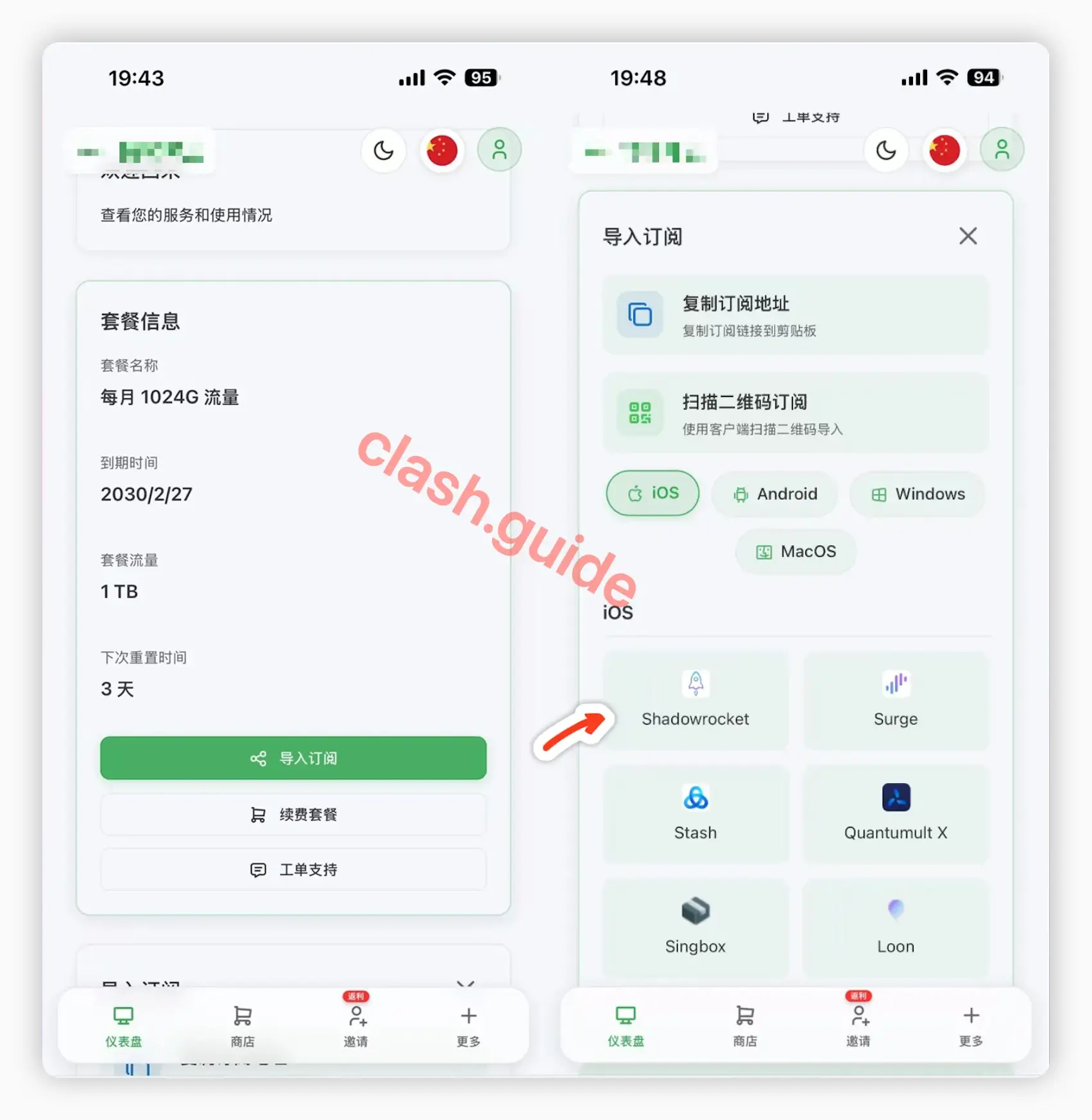
Option 2: add it manually. Copy the subscription link and open Shadowrocket. The app usually detects the clipboard and offers to add it. If it doesn't, tap + in the top-right corner, set the type to Subscribe, paste the link into URL, and tap Done.
Turn on the proxy
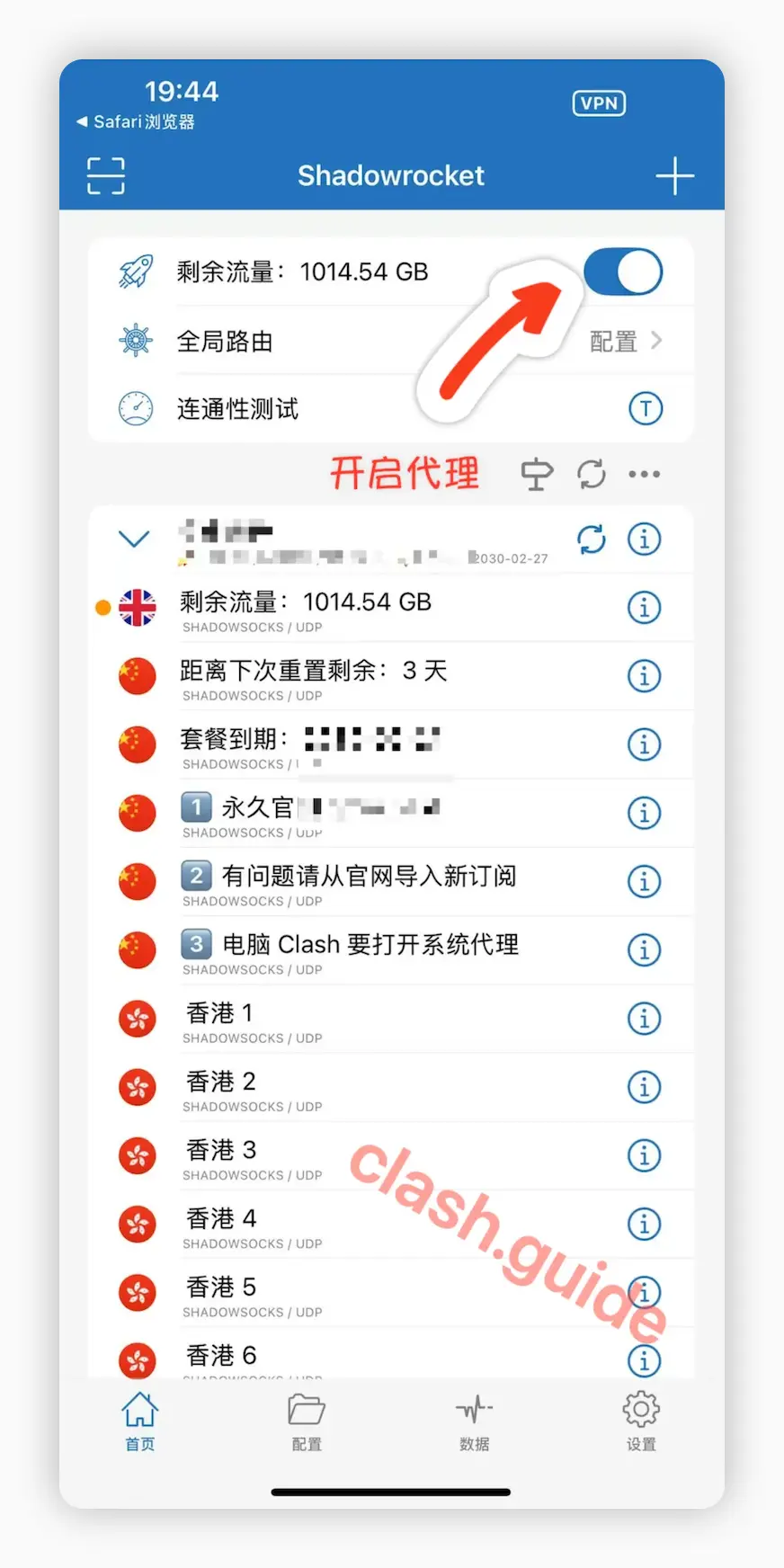
Select a server on the home screen and turn on the connection switch at the top. The first time, iOS asks to add a VPN configuration. Tap Allow and confirm with your passcode or Face ID. When the VPN icon appears in the status bar, you're connected.
Advanced settings
Global routing
Global Routing on the home screen controls where traffic goes:
- Config: rule-based routing. Local sites connect directly and international sites go through the proxy. Use this day to day.
- Proxy: all traffic goes through the proxy. Use it only temporarily when a specific site doesn't load correctly.
- Direct: no traffic goes through the proxy.
Update and test servers
Pull down on the home screen to update the subscription. Tap Connectivity Test to check each server's latency, and choose one with low latency.