Install Clash on HarmonyOS with ZhuoYiTong
HarmonyOS NEXT can't install Android APKs directly. Besides sideloading the native Clash Box client, you can run an Android Clash client through ZhuoYiTong (卓易通). This method needs no computer and no signing certificate, and works almost the same as on an Android phone.
Comparing the two methods
| ZhuoYiTong + Android client | Clash Box sideload | |
|---|---|---|
| Difficulty | Easy, done entirely on the phone | Requires signing on a computer |
| Validity | Works long term | Self-signed apps expire after 14 days by default |
| Client choice | Clash Meta for Android, FlClash, and more | Clash Box only |
| How it runs | Inside a compatibility environment | Natively on HarmonyOS |
Download
We recommend these open-source clients in ZhuoYiTong, both downloaded from their official GitHub pages:
| Client | Recommended file | Notes |
|---|---|---|
| Clash Meta for Android | meta-arm64-v8a-release.apk | Recommended; active community, good compatibility |
| FlClash | android-arm64-v8a.apk | Clean interface, same as the desktop app |
Install
Install ZhuoYiTong
Open Huawei AppGallery, search for 卓易通 (ZhuoYiTong), and install it. Follow the setup prompts on first launch and grant the permissions it asks for.
Download the client APK
Open the GitHub link above in your phone's browser, download the matching .apk, and save it to local storage.
Install it in ZhuoYiTong
Open ZhuoYiTong, choose to install a local app, select the .apk you downloaded, and install it. You can then open the Clash client from inside ZhuoYiTong.
Setup
The steps below use Clash Meta for Android. The interface is identical to the one on an Android phone.
Get your subscription link
Clash clients don't include any servers. Sign in to your provider's dashboard and copy your subscription link.
Import from URL
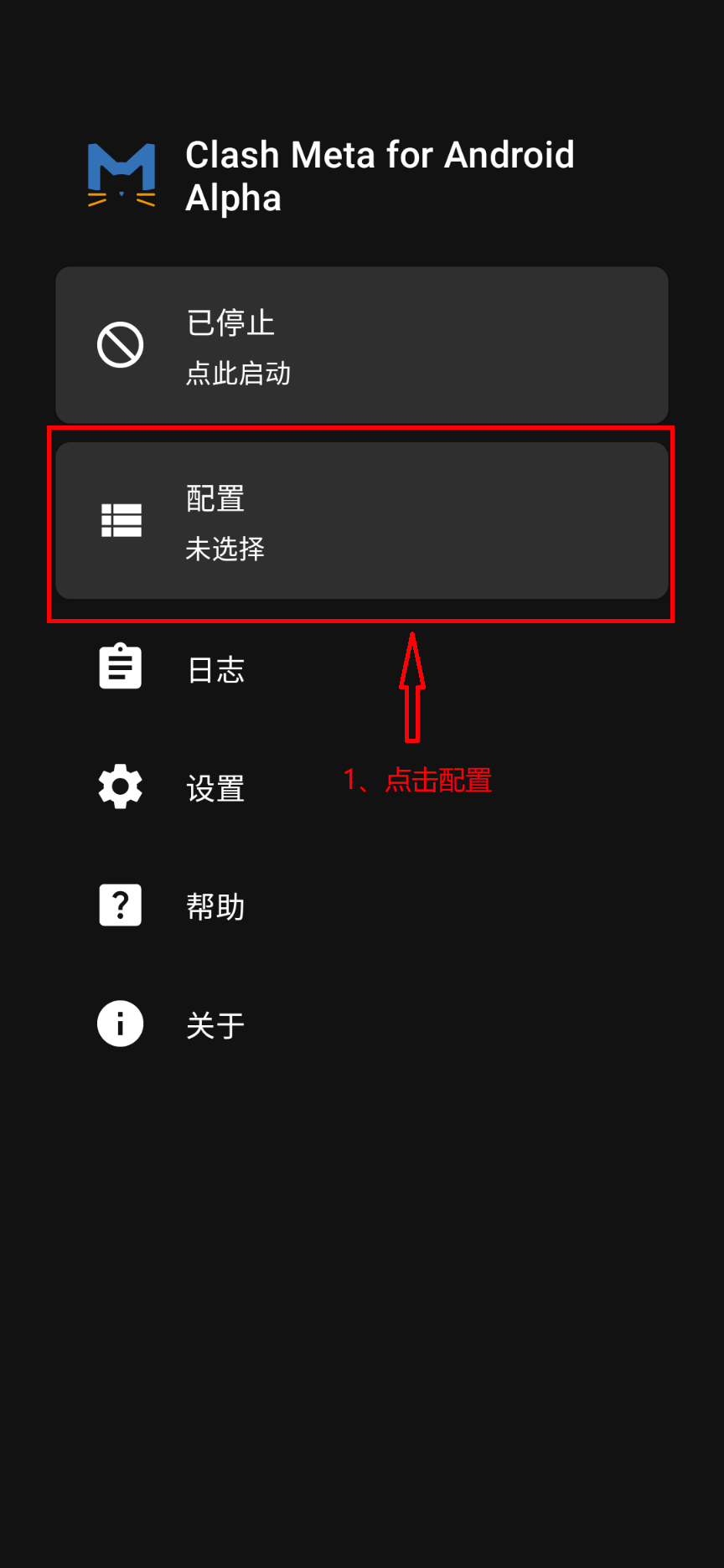
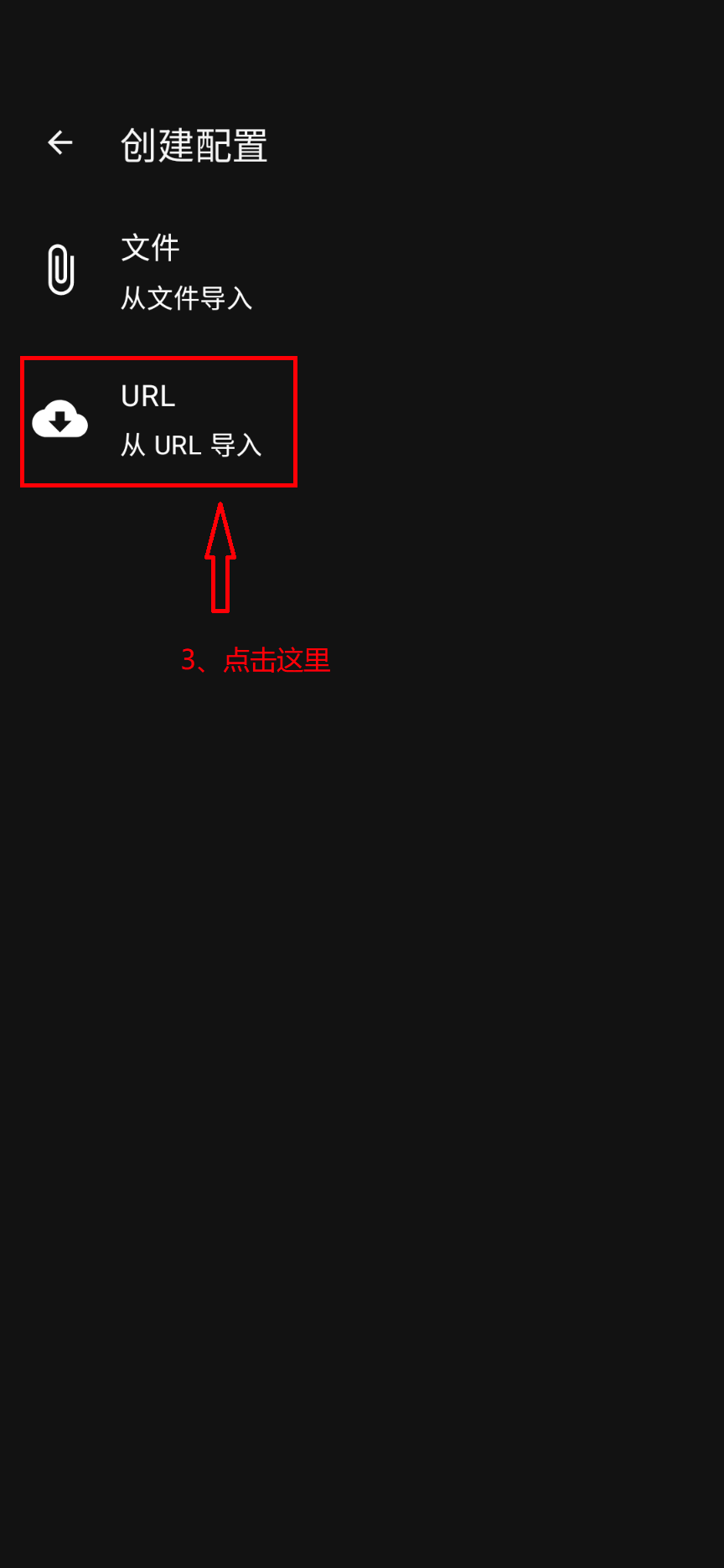
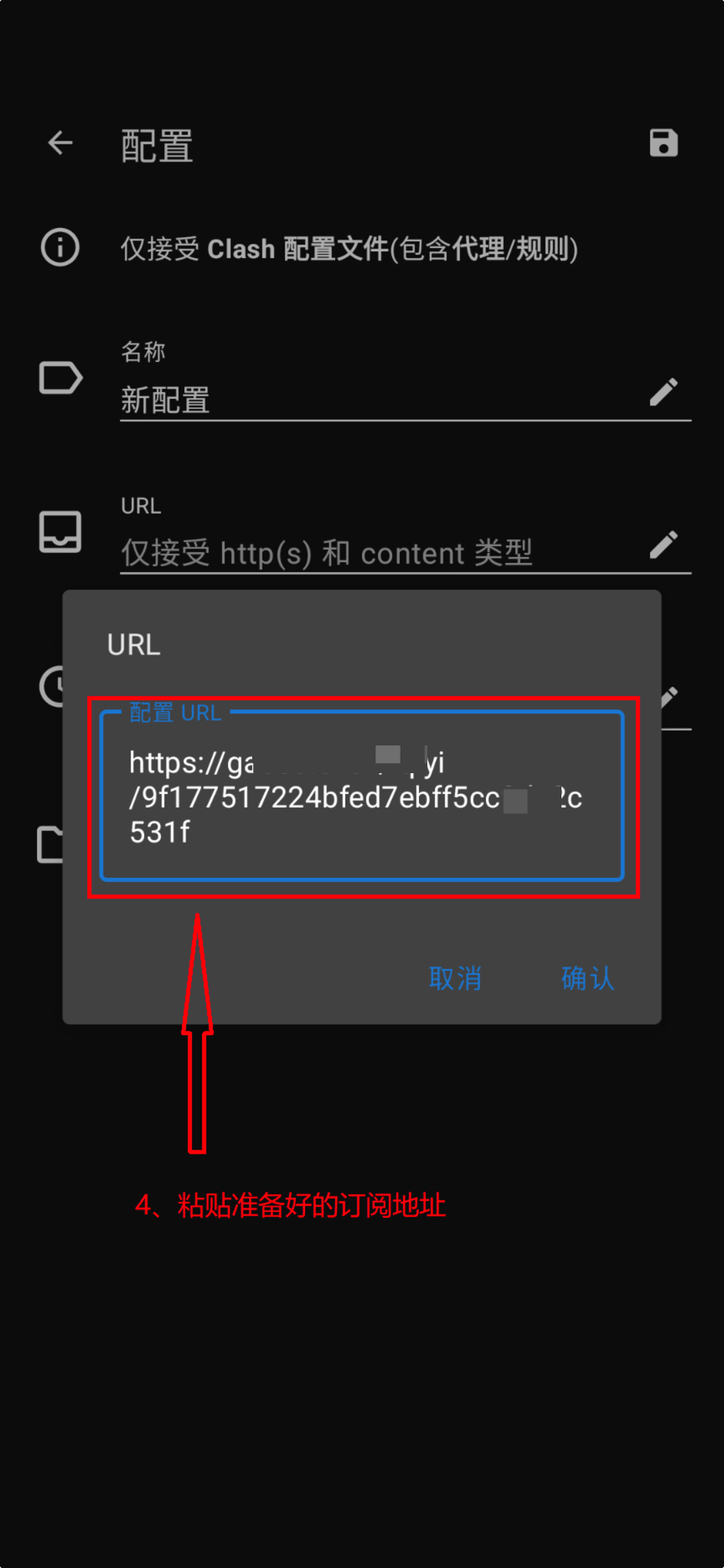
Tap Profiles → + in the top-right corner → URL, paste the subscription link, tap the save icon in the top-right corner, and select the profile.
Start the proxy
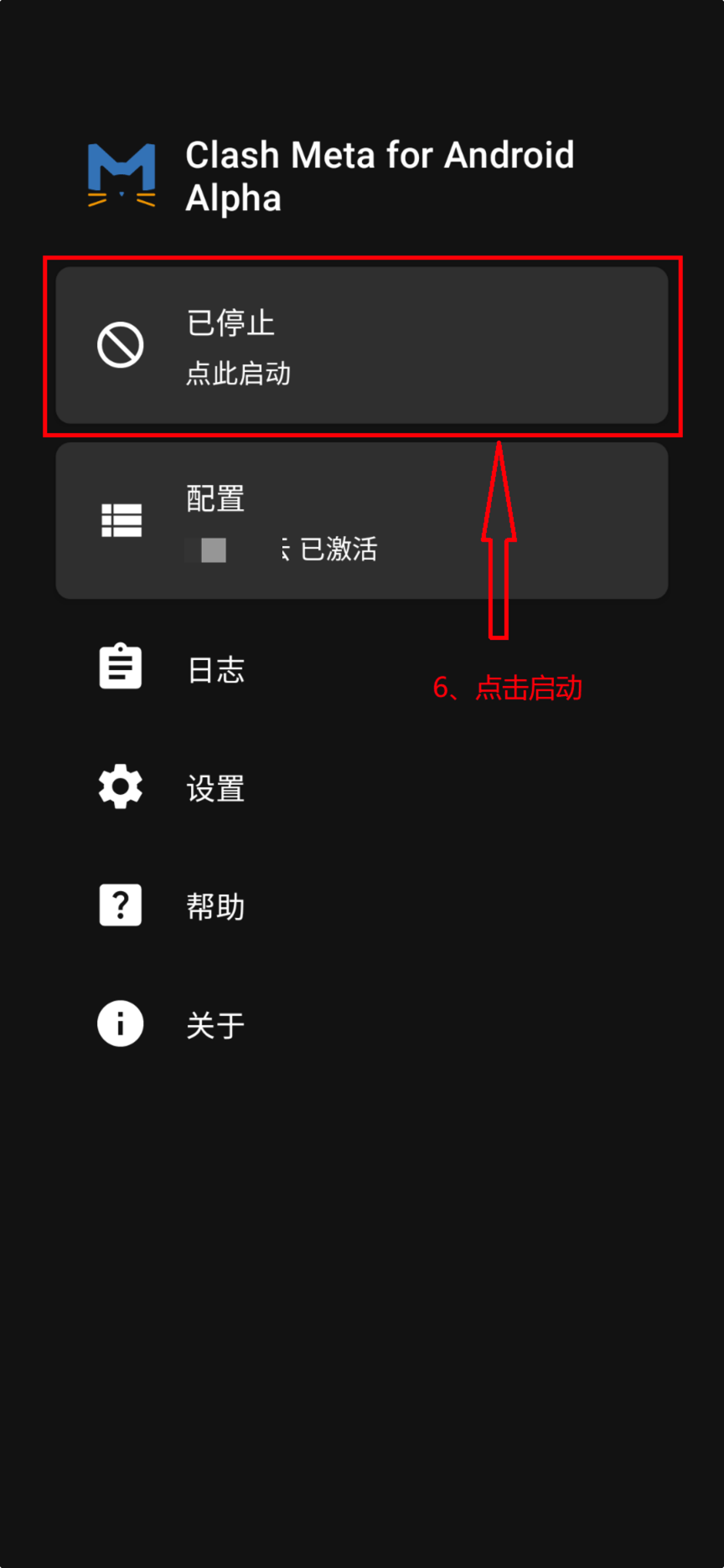
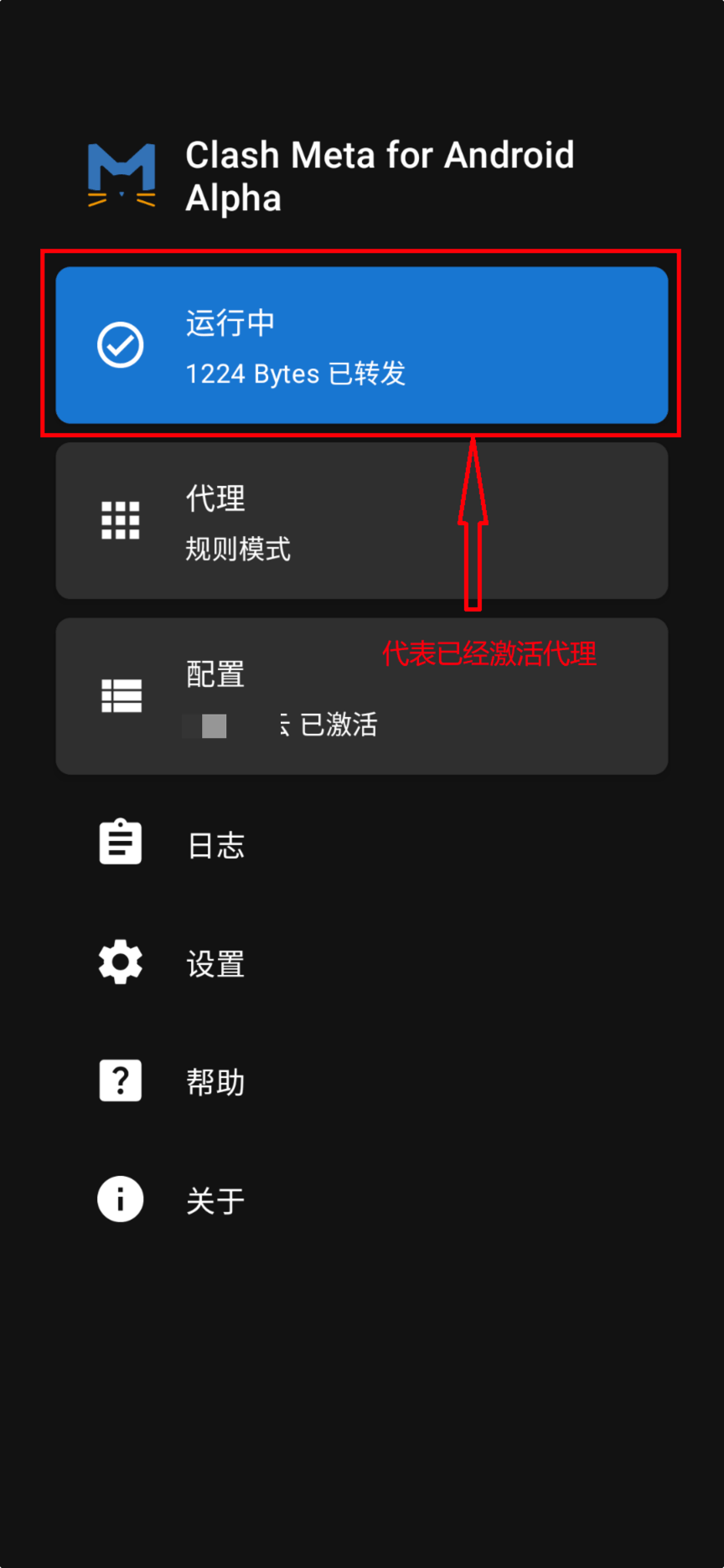
Go back to the home screen, tap Stopped to start, and allow the VPN permission request. When the button changes to Running, you're connected.